TABLE OF CONTENTS
- Viewing and Managing Contacts in AE Sync
- Contact Detail Page Overview
- Left Panel: Contact Information
- Center Panel: Communication & Activity Timeline
- Right Panel: Pipeline & Engagement Details
Viewing and Managing Contacts in AE Sync
Accessing Contacts
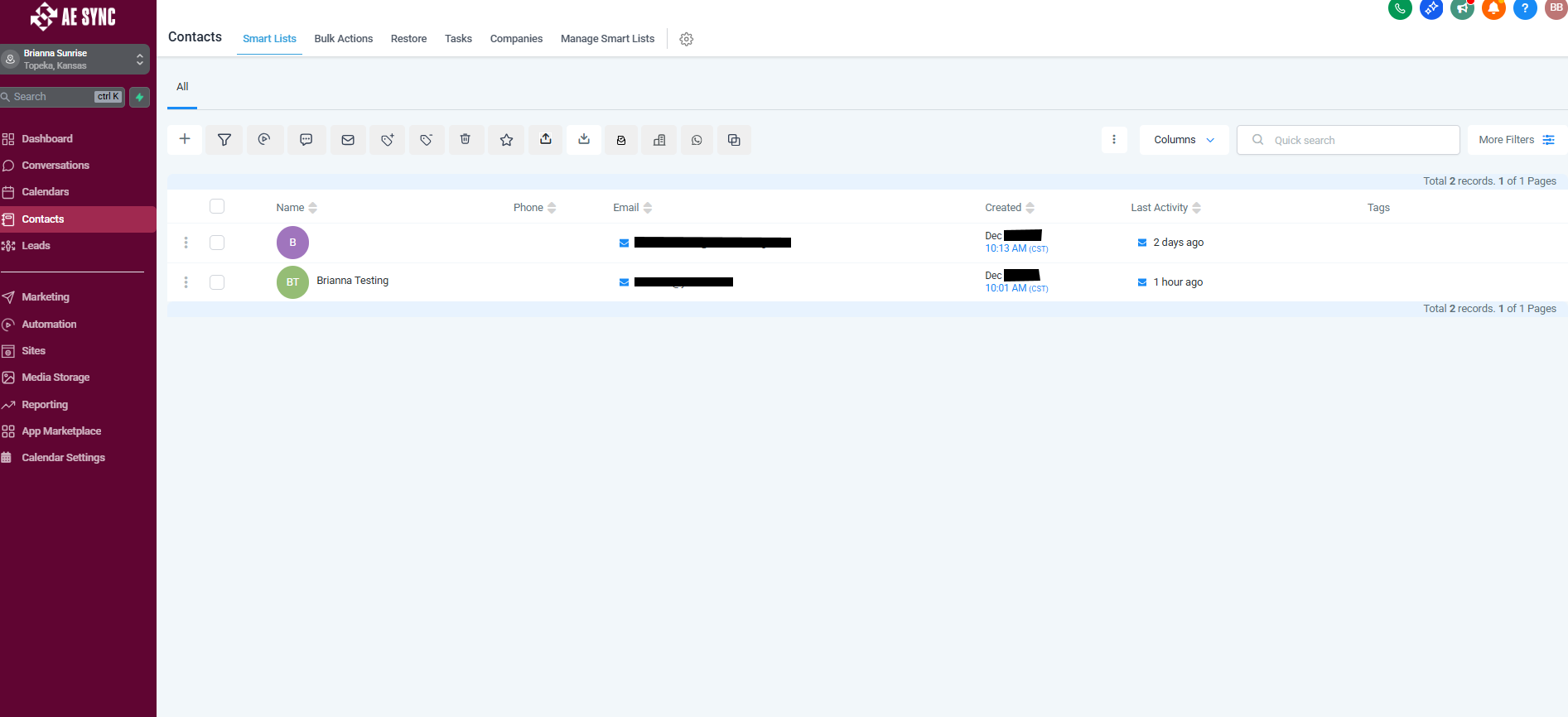
Begin by clicking Contacts on the left-hand navigation menu.
All contacts associated with your account will be displayed on this page.
Searching and Filtering Contacts
Use the search bar at the top of the page to locate contacts by:
Name
Email Address
Phone Number
Tags
Additional filters can also be applied to further narrow down your contact list as needed.
Contact Detail Page Overview
When you click into an individual contact, the Contact Detail Page opens and is divided into three panels (the Right Panel may be auto-collapsed by default):
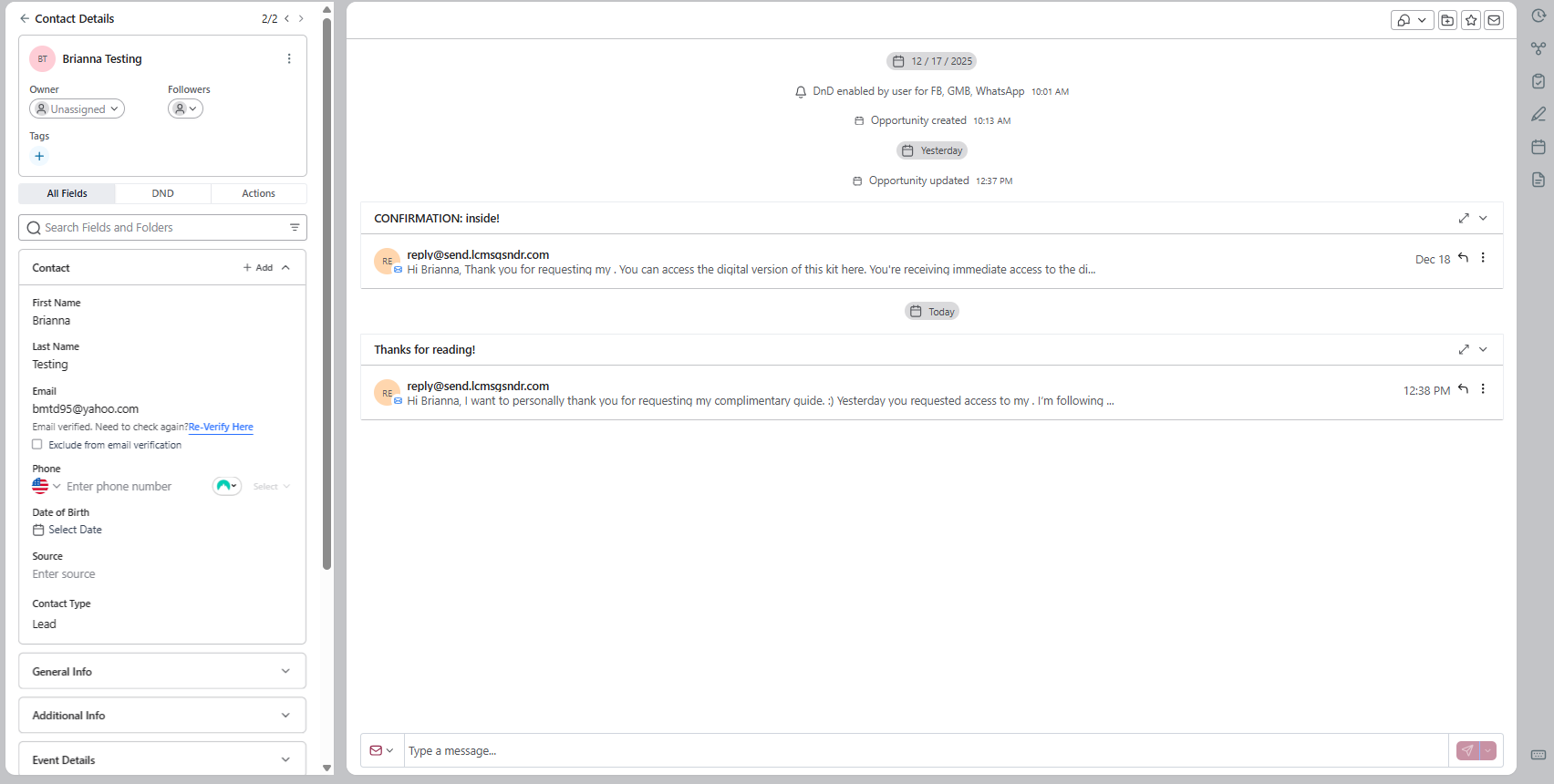
Left Panel – Core contact information (name, email, phone number, tags, DND status, and quick actions)
Center Panel – Activity timeline (messages, calls, appointments, and system logs)
Right Panel – Action modules (Tasks, Notes, Documents, Payments, and Associations)
Left Panel: Contact Information
The Left Panel contains all primary details for the contact.
All Fields
Any contact field can be edited or updated if incorrect or missing information is identified.
Changes are saved automatically.
Do Not Disturb (DND)
If a contact requests not to be contacted in the future or a phone number is identified as invalid, the contact can be marked as a Lost Lead.
Once marked, the contact will automatically be placed in DND status, preventing future communications.
Center Panel: Communication & Activity Timeline
The Center Panel displays all communication and engagement history for the contact, including:
All sent content associated with the contact
Automated emails sent through pipelines and workflows
Any replies from the contact, which will appear directly in this timeline
Email responses are also forwarded to the designated email address selected by your organization
This panel provides a complete, chronological view of all interactions, ensuring you can easily track conversations and engagement without leaving the contact record.
Right Panel: Pipeline & Engagement Details
The Right Panel contains the majority of information related to the contact’s activity and progression.
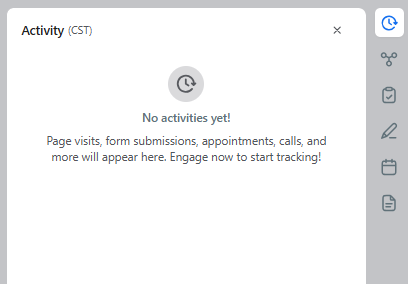
Activity
Displays engagement history including:
Page visits
Form submissions
Appointment requests
Associations
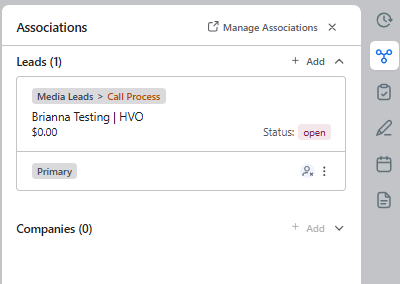
Shows all funnels and workflows the contact has moved through, as well as their current stage.
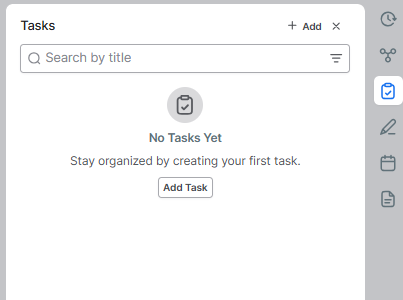
Tasks
Lists all tasks created for the contact along with their current status.
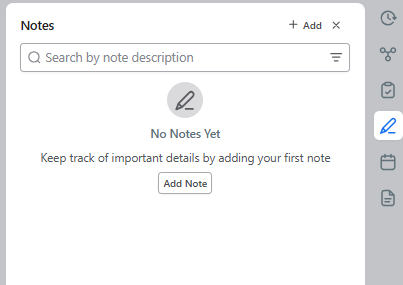
Notes
Displays internal notes that have been added to the contact record.
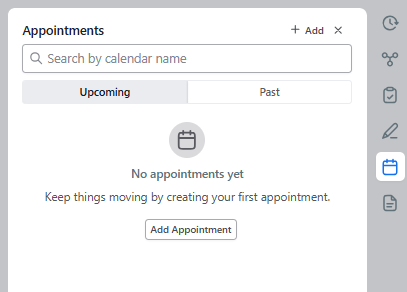
Appointments
Displays all appointments scheduled through AE Sync’s integrated calendars.
Past appointments are retained and indicate whether they were completed or canceled.
Documents
This section is not currently in use.
It can store documents that are shared with or sent to the contact if enabled in the future.
Was this article helpful?
That’s Great!
Thank you for your feedback
Sorry! We couldn't be helpful
Thank you for your feedback
Feedback sent
We appreciate your effort and will try to fix the article