Task Management in AE Sync
What Is a Task?
A task is an action that needs to be completed for a specific contact or lead. Tasks help ensure consistent follow-up and keep your team aligned on next steps.
When a lead first enters a pipeline, tasks will automatically begin appearing on the lead card as part of your workflow—unless you are using Call Care or another external service to manage outbound calling.
How Tasks Are Created
Tasks can be created in several ways:
Automatically through pipelines and automations
Manually by a user
As follow-ups tied to lead stage changes or appointment outcomes
Each task includes:
A task type (Call, Follow-Up, To-Do, etc.)
A due date and time
An assigned user
Optional notes or descriptions
Viewing Outstanding Tasks
There are two primary ways to view and manage tasks in AE Sync.
Option 1: Viewing Tasks from the Pipeline
Outstanding tasks are visible directly on the lead card within the pipeline.
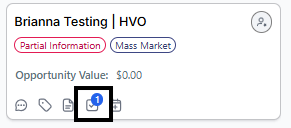
A blue task indicator (for example, a blue “1”) appears on the lead card when a task is due or outstanding.
When a task becomes active, a task icon will appear on the card.
Managing the Task
Click the task icon on the lead card.
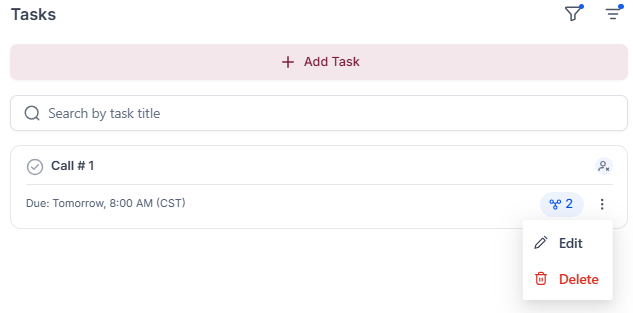
The contact record will open to the Tasks section.
Select the three-dot menu to edit the task or add notes to the description.
Once the task is completed, click the checkmark.
The checkmark will turn green
The task will be closed
The blue task indicator will be removed from the pipeline view

Option 2: Viewing Tasks from the Task List
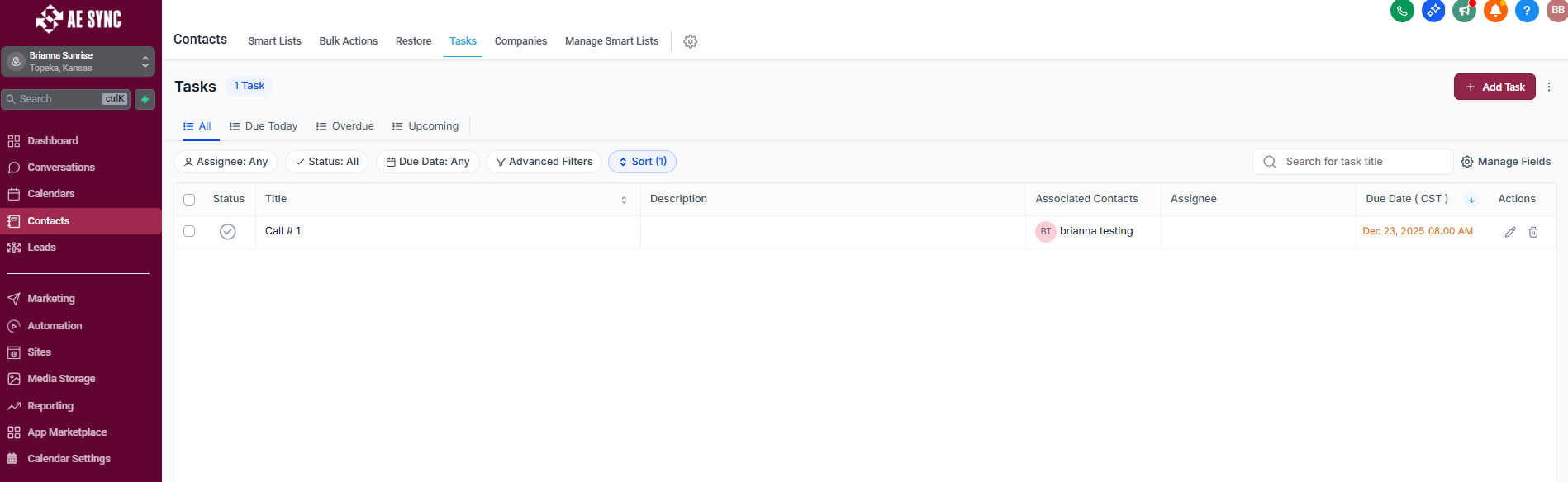
You can also view all outstanding tasks in one place.
Navigate to Contacts.
Select Tasks.
This view displays all tasks across your account, listed in order of their due dates.
Sorting and Managing Tasks
From the Tasks list, you can:
Sort by:
Task type
Assigned user
Due date
Contact or lead
Edit task notes and descriptions
Complete tasks directly from this screen without opening the contact record
This view is ideal for daily task management and workload prioritization.
Best Practices
Review tasks daily to avoid missed follow-ups.
Complete tasks promptly to ensure automations and next steps trigger correctly.
Use task notes to document call outcomes or important details.
Keep task assignments up to date to ensure accountability.
Was this article helpful?
That’s Great!
Thank you for your feedback
Sorry! We couldn't be helpful
Thank you for your feedback
Feedback sent
We appreciate your effort and will try to fix the article