Lead Details in AE Sync
Leads in AE Sync allow you to track and manage contacts as they move through your pipeline. You can edit a lead at any time to update its details, stage, status, or assignment.
How to find a Lead in the Pipeline
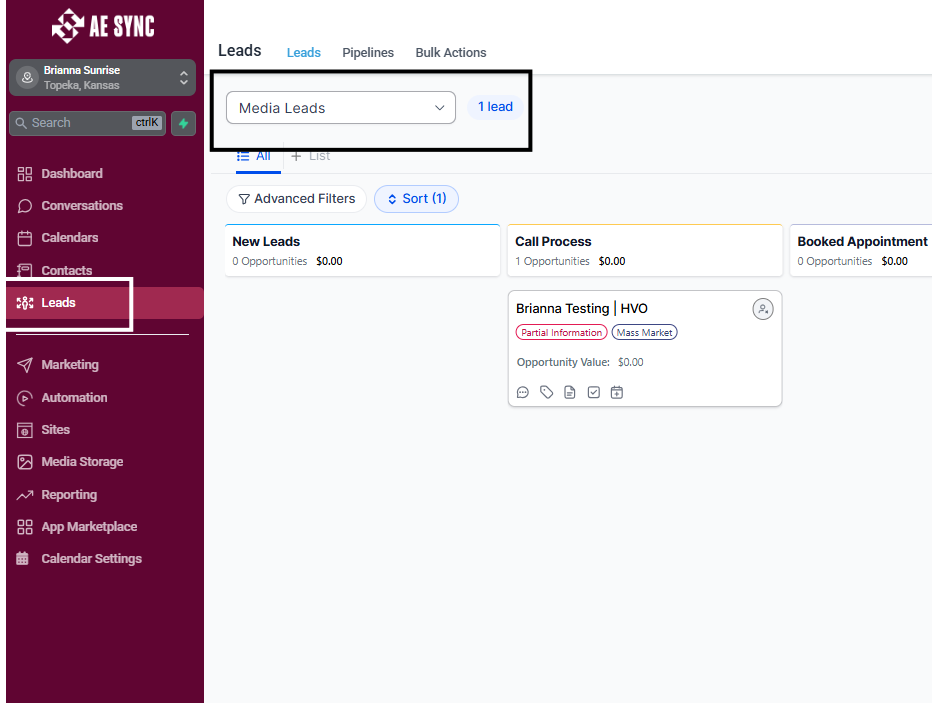
Navigate to Leads from the left-hand menu.
Select the Pipeline where the lead is located.
Click on the lead you want to edit.
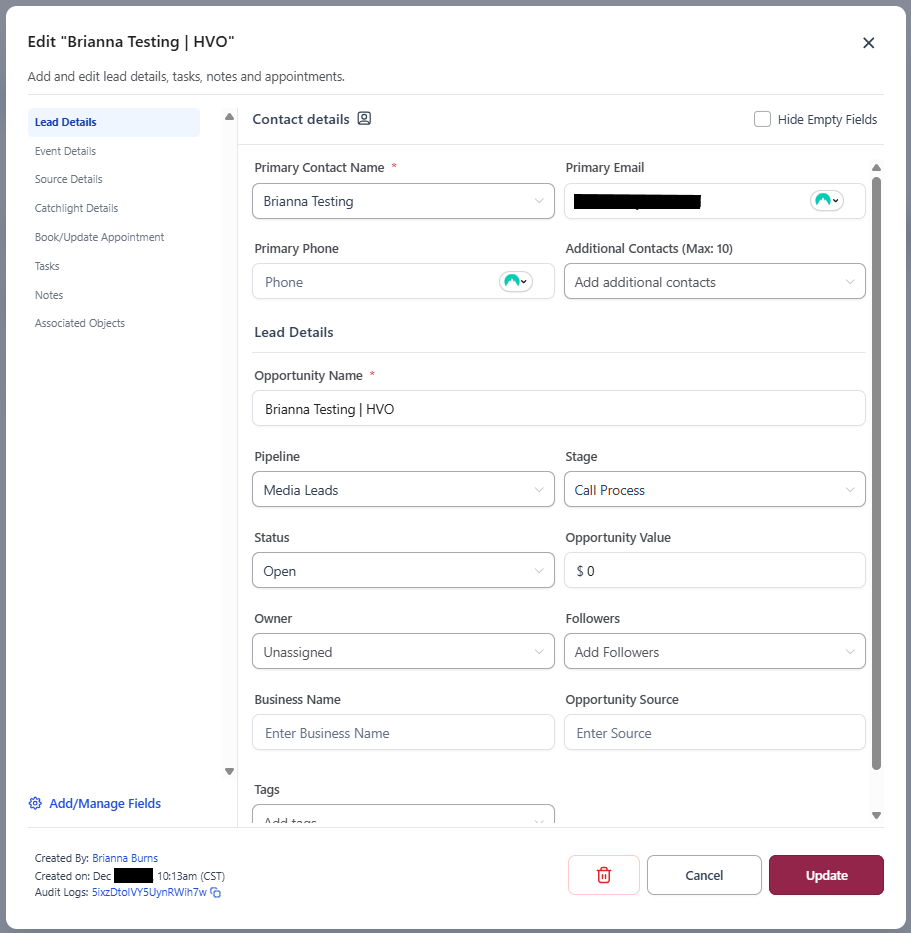
The lead details panel will open, allowing you to make updates.
Lead Fields
You can find the following information for a lead:
Lead Details:
Primary Contact Name
Primary Email
Primary Phone
Lead Details - This information should prefill if contact is not manually created.
Pipeline – Move the lead to a different pipeline
Stage – Update the lead’s position within the pipeline
Status – Open, Won, Abandoned, or Lost
Lead Value – Enter or adjust the potential value
Source – Identify where the lead originated
Tags – Add or remove tags for organization
Event Details: In Pipelines that will be for event based items the following will be completed:
Event Name
Venue Name
Event Presenter
Venue Address
Event Time
Event Date
What is your guest's full name?
Source Details: This will pre-fill information based on where the lead came from. Please do not edit this information, as it will cause reporting and automations to potentially stop working.
Source
Medium
SMS Keyword
Tracking Phone #
Campaign
Catchlight: These will auto fill if Catchlight has been set up on the account.
Estimated Investable Assets
Catchlight Score
Wealth Segment
Book/Update Appointment: When an appointment is booked this section will be filled out and can be edited.
Calendar
Meeting Location
Appointment Title
Tasks / Notes: Tasks and Notes can be auto created based on the pipeline that the Lead has entered into or these can be created manually.
Call Tasks are automatically added to the Lead when they enter the pipeline
Was this article helpful?
That’s Great!
Thank you for your feedback
Sorry! We couldn't be helpful
Thank you for your feedback
Feedback sent
We appreciate your effort and will try to fix the article