TABLE OF CONTENTS
- What Are Calendars in AE Sync?
What Are Calendars in AE Sync?
Calendars in AE Sync help your business manage and schedule bookings online. They allow you to:
Create individual service booking pages and group booking pages
Assign staff members and locations to each calendar
View all calendar types in one centralized location
Organize calendars into groups for easier booking experiences
How to Create a New Calendar
Step 1 — Access the Calendar Setup
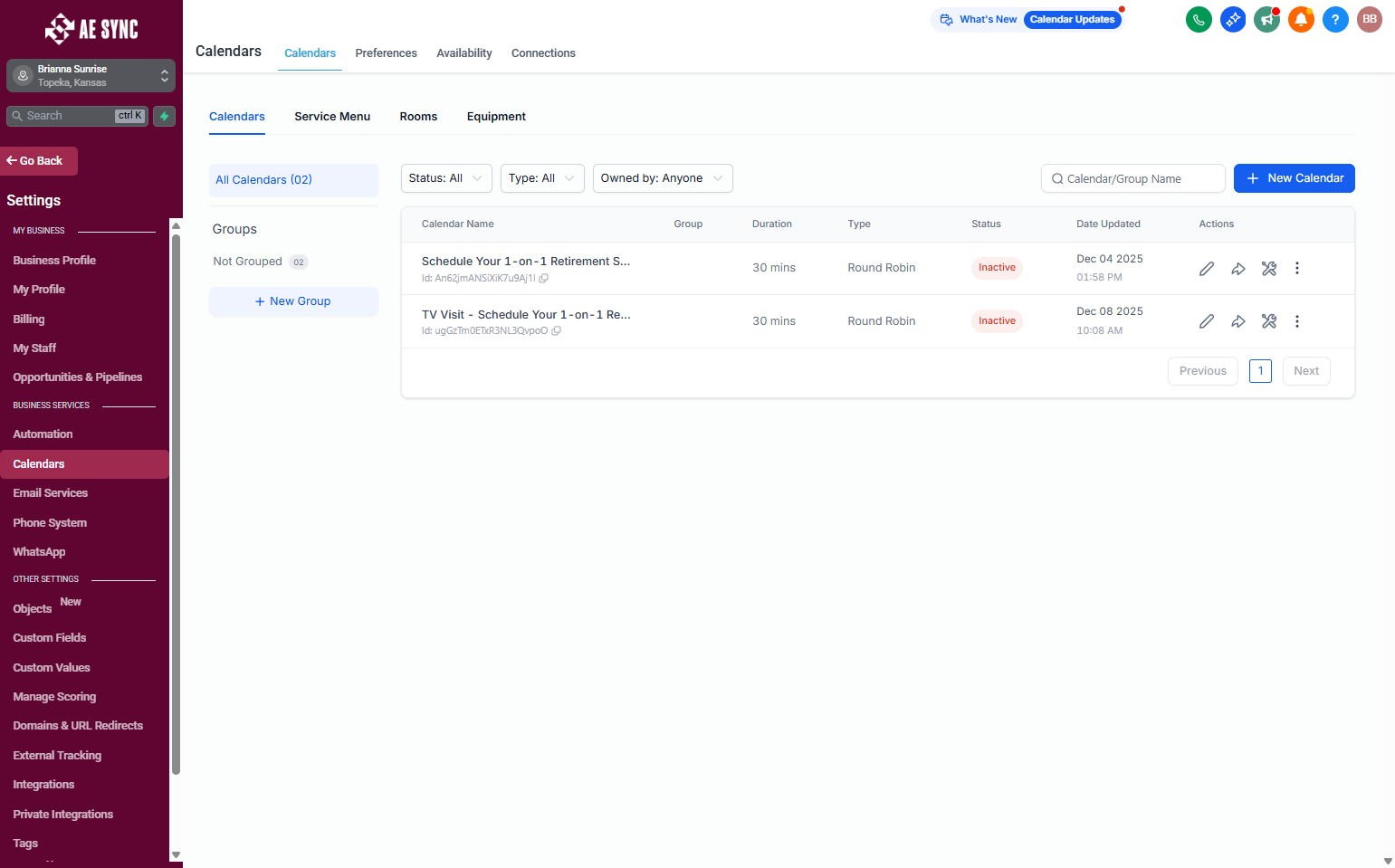
From your AE Sync dashboard, go to Calendars > Calendar Settings.
Click Calendar.
Choose New Calendar.
Step 2 — Choose a Calendar Type
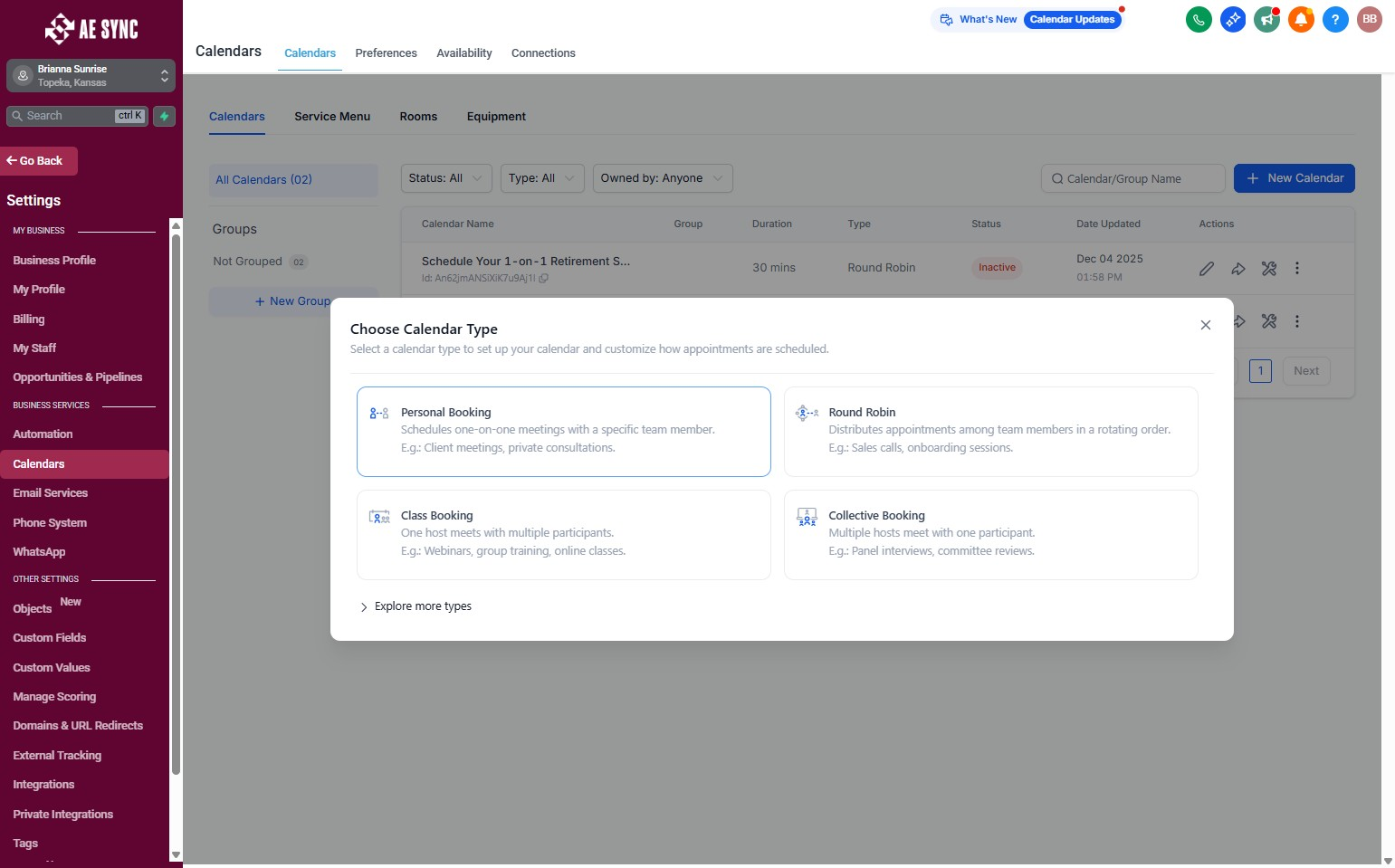
When creating a new calendar, you’ll be asked to select the calendar type. These options are similar to tools like Calendly.
Available Calendar Types:
- Personal Booking
- One-to-one booking between a staff member and a lead/prospect
- One-to-one booking between a staff member and a lead/prospect
- Round Robin Booking
- Multiple staff calendars are connected
- AE Sync automatically schedules with the next available staff member
- Class Booking
- One staff member with multiple attendees
- Typically used for group sessions or presentations - May not be used for the HVO offer at this time
- One staff member with multiple attendees
- Collective Booking
- Multiple staff members attend one meeting with a lead
- Only times where all selected staff are available will show
- Best for:
- Training new office staff
- Calls requiring multiple team members
- Best for:
Step 3 — Basic Calendar Setup
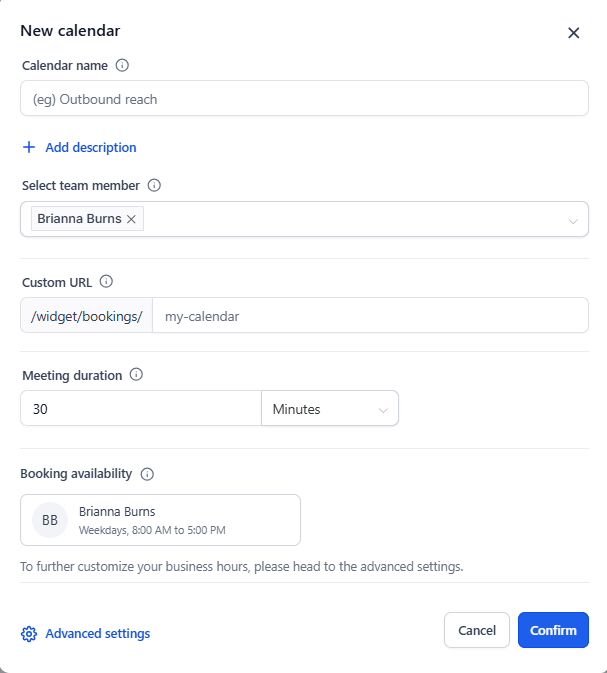
After selecting the calendar type, you can either:
Complete the setup on the initial screen or
Click Advanced Settings in the lower-left corner to customize everything
Required Fields (Initial Setup)
If completing the basic setup screen, be sure to fill out:
Calendar Name
(Visible to the lead/prospect)Team Members
(Who meetings can be scheduled with)Custom URL
(Short, descriptive wording for the booking link)Meeting Duration
(Length of the meeting)
Step 4 — Advanced Settings Overview
Clicking Advanced Settings opens the full calendar configuration page.
Any fields completed during the initial setup will automatically transfer here
If not completed earlier, each section must be filled out
This information controls exactly what the lead/prospect sees
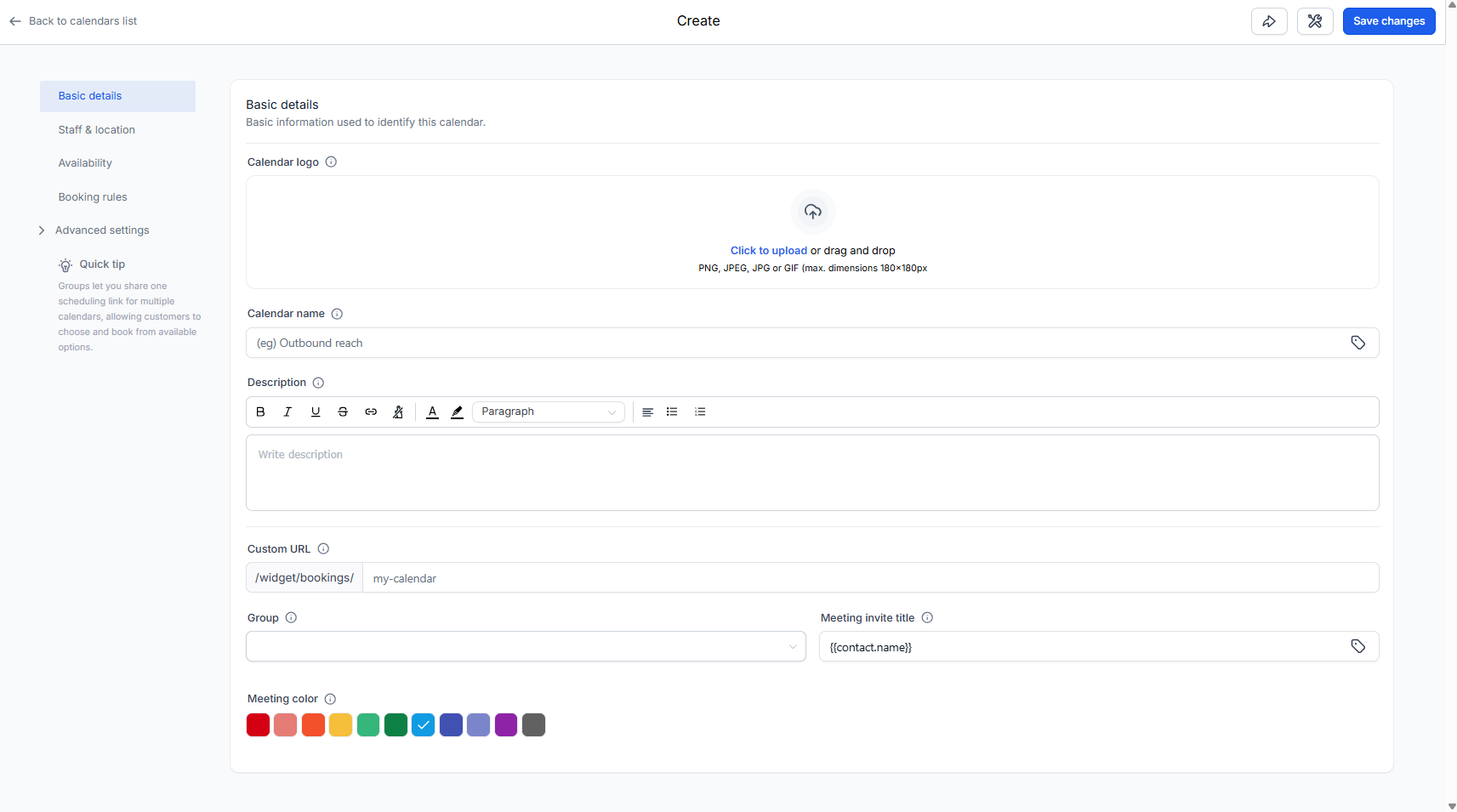
Basic Details
Calendar Specific Logo
Calendar Name (this will show to the Lead)
Description of what the Lead can expect during this meeting
Custom URL
Group - If you would like to sort the new calendars to be able to better sort these
Meeting Invite Title
Determines how the meeting appears in email notifications
Shortcode tags can be used to automatically pull in lead information
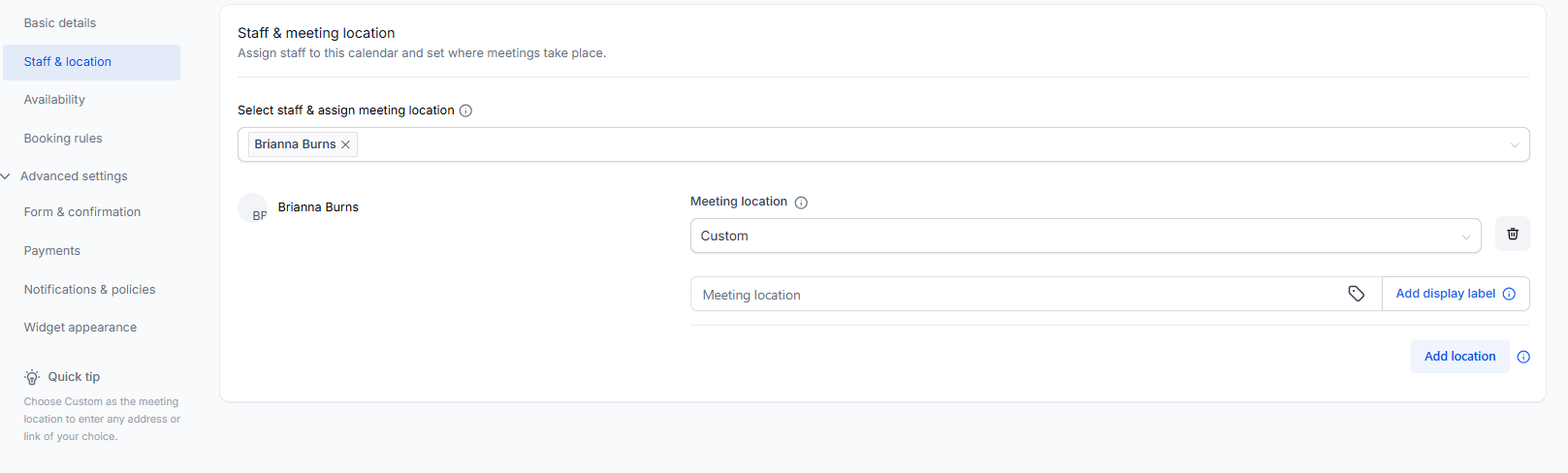
Staff & Location
User(s) who will show as available in the calendar
Location is how/where the meeting will take place:
Phone call
Physical address
Video meeting link (if connected) - Zoom, Teams
Custom
Availability
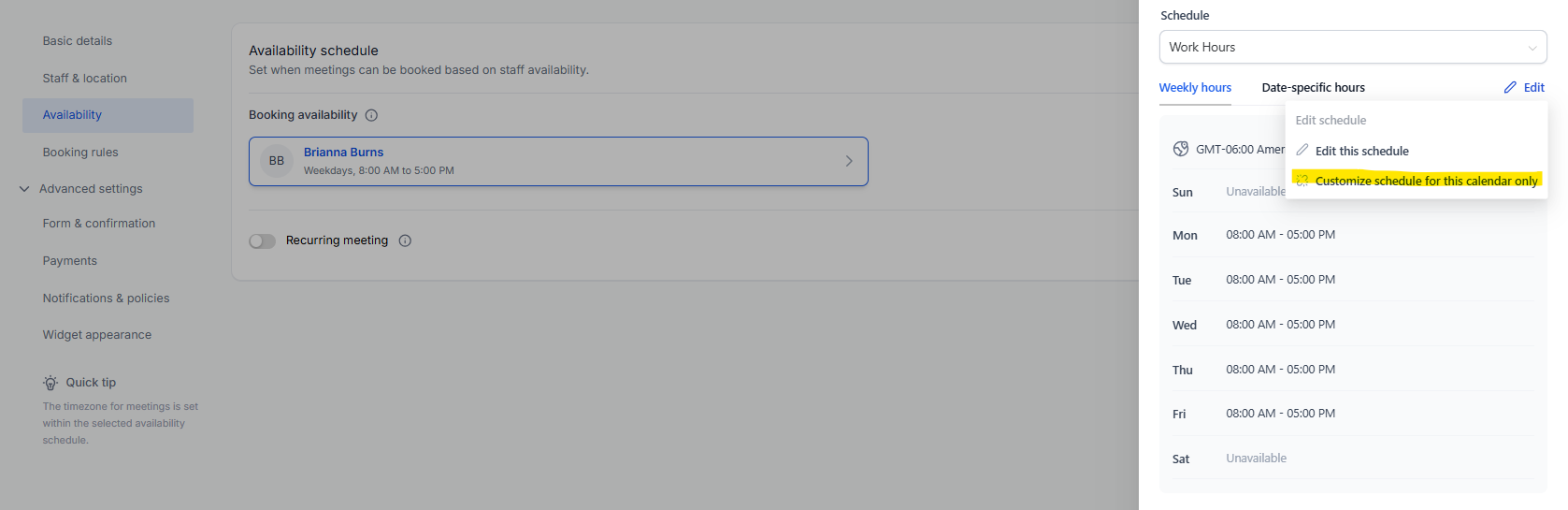
When each user will be available in the account
Click on the user, then choose "Customize Schedule for this Calendar Only"
This will allow the days/times available to be specific for this calendar without affecting other calendars that the user might be on.
Booking Rules
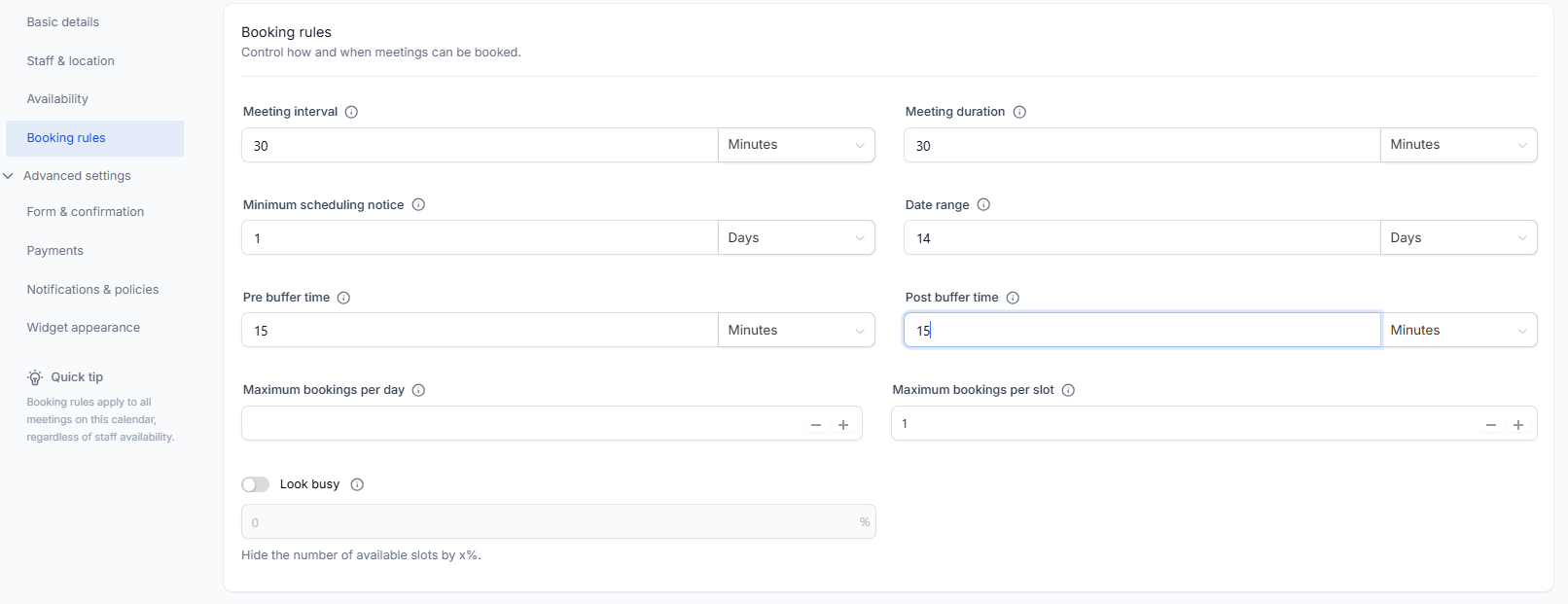
This section controls when and how meetings can be booked
- Meeting Interval
- How often available time slots appear on the booking widget
- Meeting Duration
- Length of the scheduled meeting
- Minimum Scheduling Notice
- Prevents same-day or last-minute bookings
- Date Range
- Controls how far into the future bookings are allowed
- Pre-Buffer Time
- Blocks time before a meeting
- Post-Buffer Time
- Blocks time after a meeting
- Maximum Bookings Per Day
- The number of bookings that you will allow on your calendar per day
- Look Busy
- Automatically blocks a percentage of available time
- Useful for: New office staff and Limiting booking volume during training
- Useful for: New office staff and Limiting booking volume during training
- Automatically blocks a percentage of available time
Advanced Settings:
Forms & Payments
The calendar will default to the standard form
You can select other forms already created in your account
Guests
Allow Leads to add additional guests who will join the meeting with them
Need custom form fields?
Please reach out to our team and we can assist with setup.
Payments
- This section will not be used with AE Sync.
Notifications & Policies
- Cancellation and Reschedule Policy
Set how far in advance a meeting can be canceled or rescheduled
Time can be adjusted in:
Minutes
Hours
Days
Widget Appearance
This final section allows you to control how the booking widget looks:
Add a logo or image
Apply brand colors
Customize button text
Step 5: Save & Preview
Once all settings are complete:
Click Save
Preview the calendar
Share or embed the booking link
Your AE Sync calendar is now ready to use.
Was this article helpful?
That’s Great!
Thank you for your feedback
Sorry! We couldn't be helpful
Thank you for your feedback
Feedback sent
We appreciate your effort and will try to fix the article