Creating Smart Lists under Appointment List View
Smart Lists in AE Sync allow you to dynamically filter and view appointments based on specific criteria. These lists update automatically, helping your team quickly identify appointments that require action.
Smart Lists are specific to each account. Each user who has access to the account will need to create Smart Views within their own account.
How to Create a Smart List
Navigate to Calendars from the left-hand menu.
Open Appointment List View.
Select Smart Lists.
Click Create New Smart List.
Enter a name for your Smart List.
Set the desired filters (see examples below).
Save the Smart List.
Once saved, the Smart List will automatically update based on the criteria you selected.
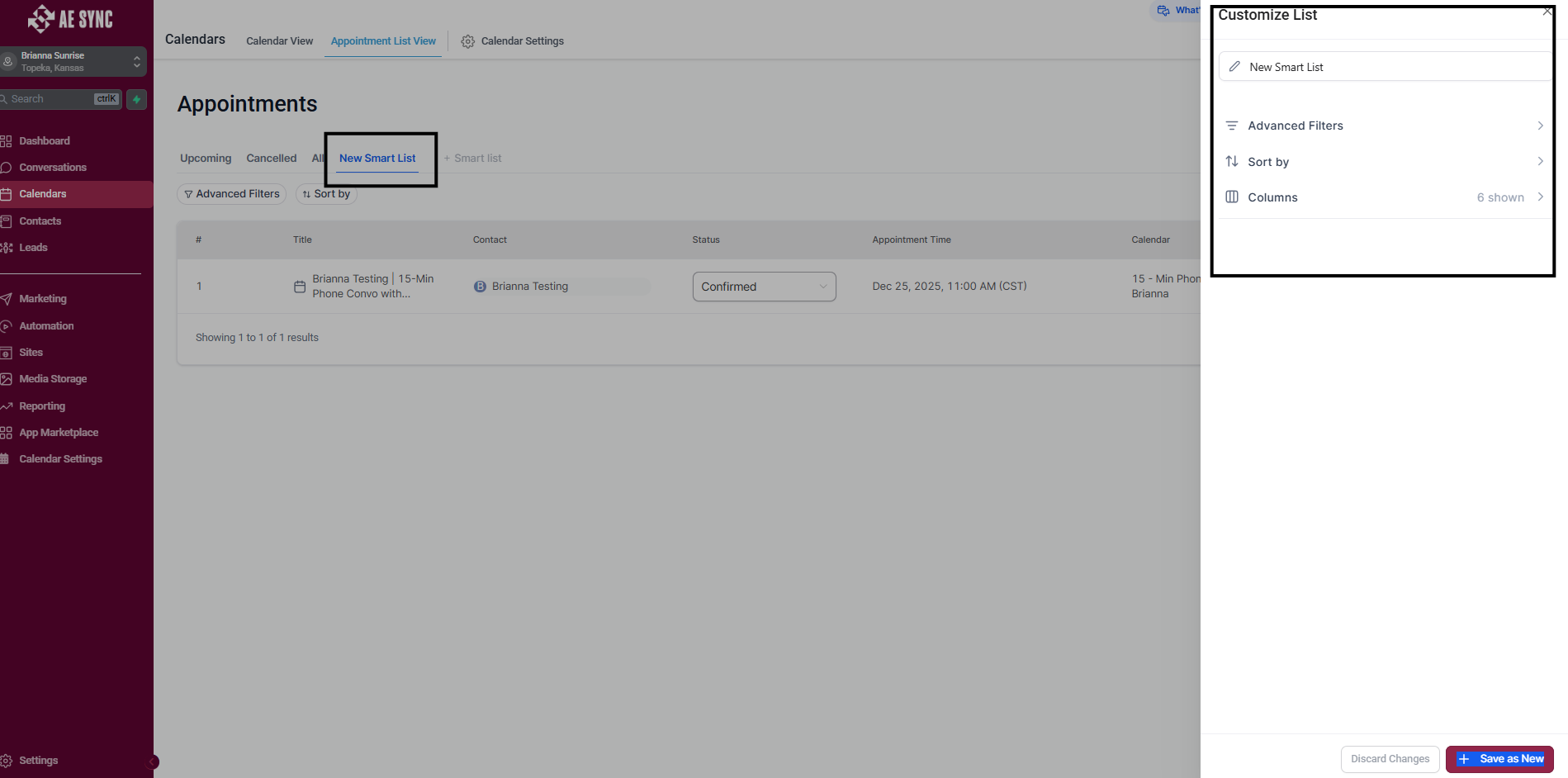
Common Smart List Filters
You can create Smart Lists using a variety of filters, including:
Appointment status (Scheduled, Confirmed, Cancelled, No Show, Completed)
Assigned calendar
Assigned user
Date or date range
Contact name
Appointment type
These filters can be combined to create highly specific views.
Examples of Useful Smart Lists
Today’s Appointments – Shows all appointments scheduled for the current day
No Shows – Displays appointments marked as No Show
Upcoming Appointments – Shows future scheduled appointments
Needs Follow-Up – Identifies appointments requiring additional outreach
Advisor Specific - Separate out views based on your advisors taking appointments
Managing Smart Lists
Smart Lists can be edited at any time to update filters.
You can rename or delete Smart Lists as needed.
Changes are saved automatically and applied immediately.
Best Practices
Create Smart Lists for frequently used views to save time.
Use clear, descriptive names so team members understand the list’s purpose.
Regularly review and update Smart Lists to match your workflow.
Was this article helpful?
That’s Great!
Thank you for your feedback
Sorry! We couldn't be helpful
Thank you for your feedback
Feedback sent
We appreciate your effort and will try to fix the article