Appointment List View in AE Sync
The Appointment List View in AE Sync allows you to view, manage, and update all scheduled appointments in a centralized list. This view provides greater visibility into appointment details and makes it easy to take action without opening individual calendar entries.
Accessing the Appointment List View
Navigate to Calendars from the left-hand menu in AE Sync.
Select Appointment List View.
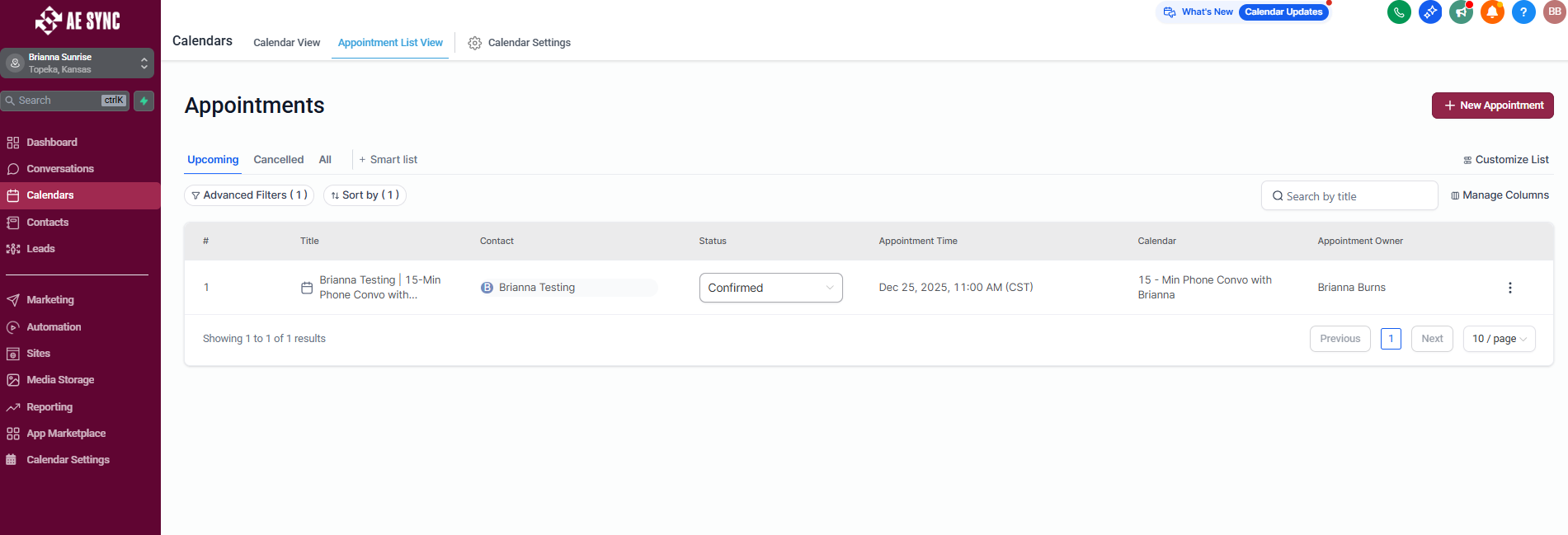
Once opened, all appointments associated with your account will be displayed in a list format.
Information Displayed in Appointment List View
Each appointment entry includes key details such as:
Contact name
Appointment title
Calendar booked on
Assigned user
Appointment date and time
Appointment status (Scheduled, Confirmed, Cancelled, No Show, Completed)
This view allows you to quickly review and manage appointments across multiple calendars.
Filtering and Sorting Appointments
You can use filters to narrow down the appointment list by:
Date range
Assigned calendar
Assigned user
Appointment status
Sorting options allow you to organize appointments for easier review and follow-up.
Updating Appointment Status
Appointment statuses can be updated directly from the Appointment List View.
Common status updates include:
Confirmed
Cancelled
No Show
Completed
Updating an appointment status ensures accurate reporting and triggers any associated automations or follow-up tasks.
Taking Action on Appointments
From the Appointment List View, you can:
Open the associated contact record
View appointment details
Update appointment status
Quickly identify appointments requiring follow-up
This helps streamline scheduling management and post-appointment workflows.
Best Practices
Regularly review the Appointment List View to identify no-shows or cancellations.
Update appointment statuses promptly to keep reporting accurate.
Use filters to manage high volumes of appointments efficiently.
Was this article helpful?
That’s Great!
Thank you for your feedback
Sorry! We couldn't be helpful
Thank you for your feedback
Feedback sent
We appreciate your effort and will try to fix the article