TABLE OF CONTENTS
How to Link External Calendars in AE Sync
AE Sync lets you connect external calendars (like Google Calendar, Outlook, iCloud, etc.) so that your availability and events stay accurate across platforms. This helps prevent double-bookings and ensures your AE Sync booking tools reflect your real schedule.
There are three main calendar types:
Connected Calendars – Authorize AE Sync to read and optionally write events from external calendars.
Linked Calendars – Import events and availability into AE Sync so the system knows when you’re busy.
Conflict Calendars – Automatically block booking slots in AE Sync when external calendar events conflict.
Prerequisites
Before proceeding, ensure you have:
Access in your AE Sync dashboard - If you do not have access, a request will need to be placed with the AE Sync Team.
Active credentials for your external calendar (Google, Outlook, iCloud, etc.)
Step-by-Step: Link an External Calendar
1) Calendar Connections
Log into AE Sync.
Go to Calendar Settings.
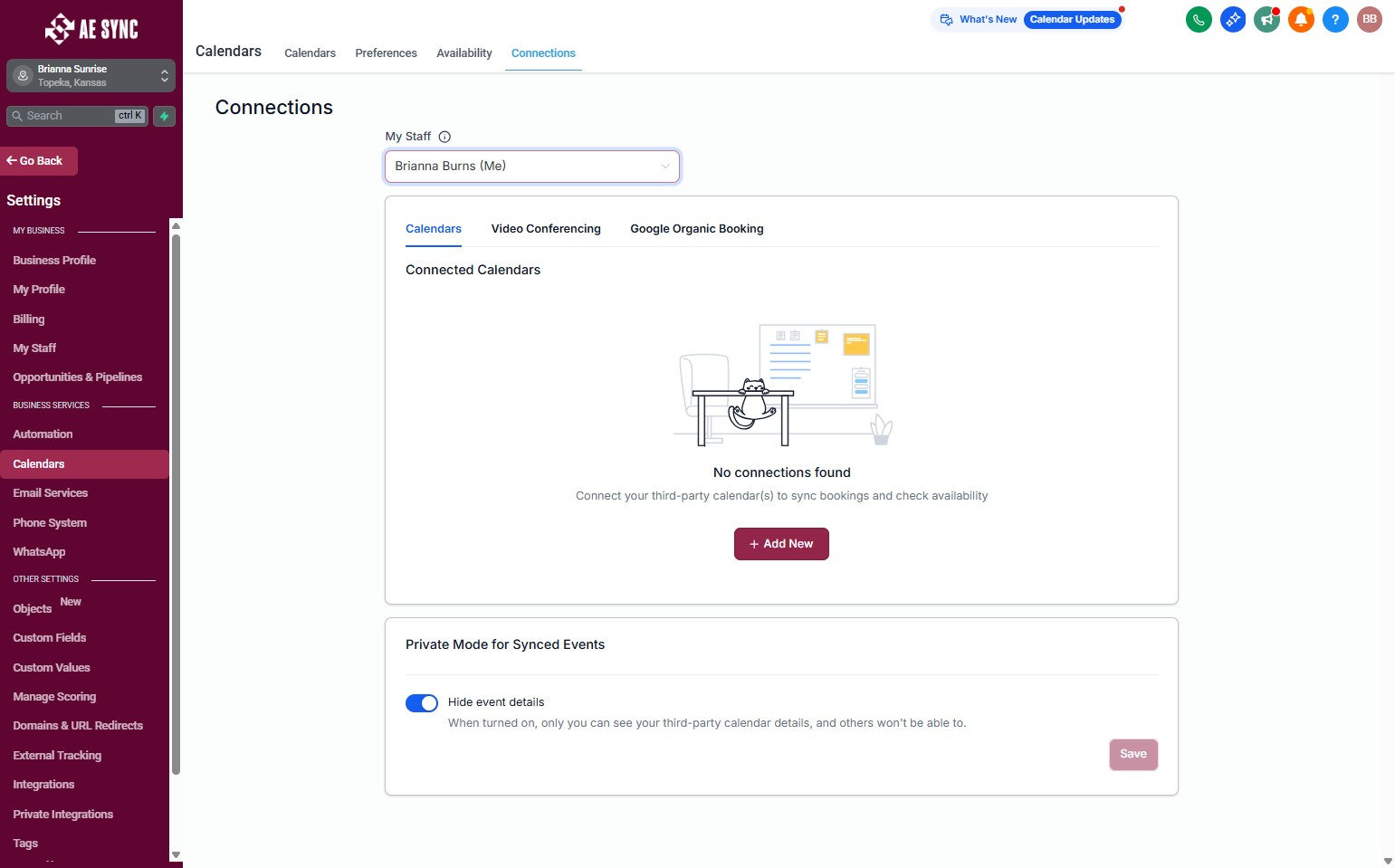
Select the Connections tab.
2) Add a Connected Calendar
+ Add New.
Choose the provider (e.g., Google, Outlook, iCloud, etc.).
Sign in and grant AE Sync permission to read events.
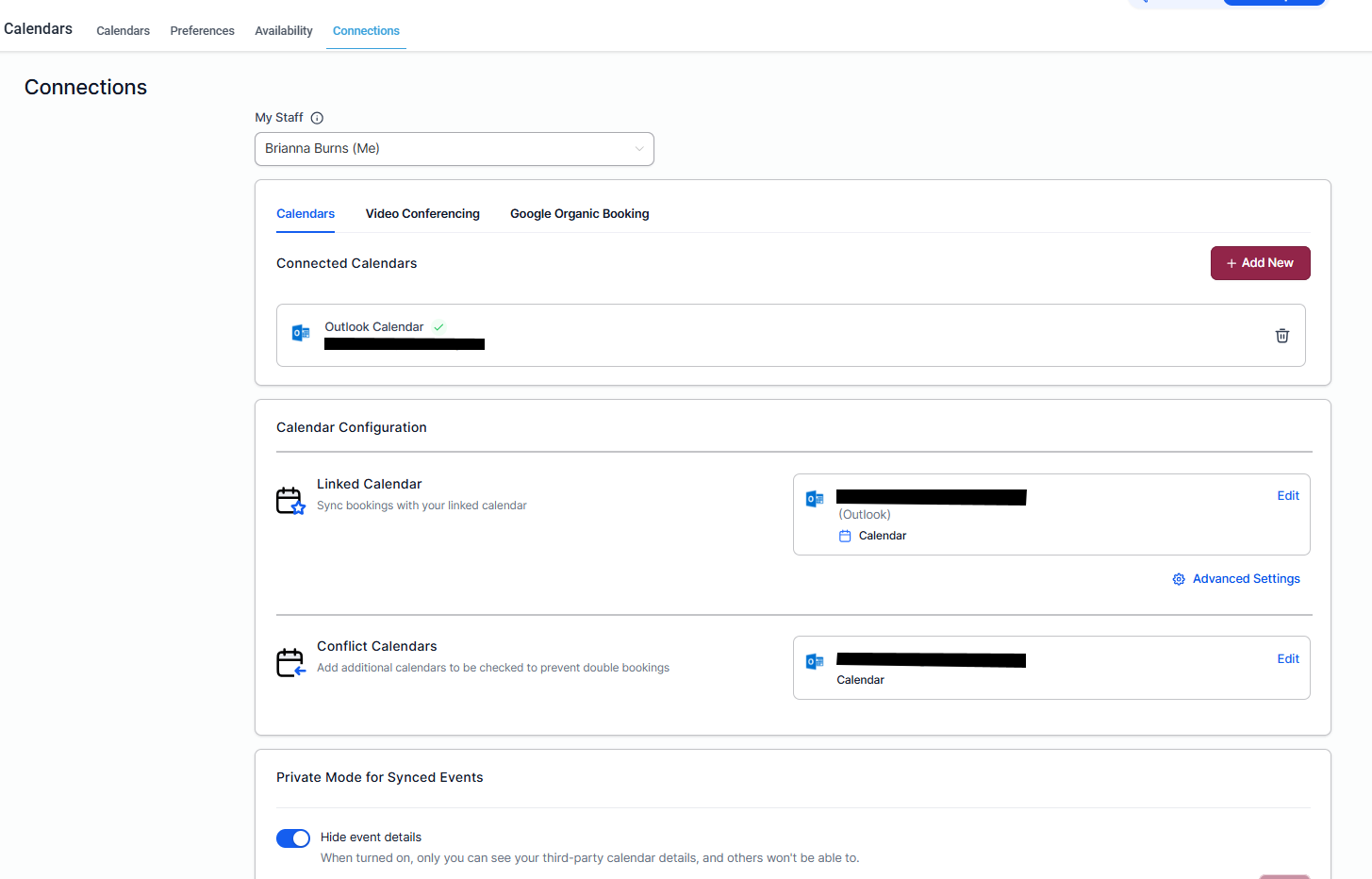
Once connected, you’ll see your account and calendar listed with its provider icon.
? Tip: If you ever see a red alert saying “Reconnect your integration,” it usually means the connection token expired. Just click Reconnect and re-authorize AE Sync to restore access.
3) Configure Your Linked Calendar
In Calendar Configuration, find Linked Calendar and click Add.
Select the connected calendar you want to import.
Click Save.
Important Notes:
You need write access on the external calendar to select it as a linked calendar.
When a calendar is linked, AE Sync often adds it as a conflict calendar by default, blocking times when you’re busy elsewhere.
You can customize how syncing works in Advanced Sync Preferences.
Sync Preferences (Advanced Settings)
Open Advanced Settings under the calendar setup to choose how events sync between AE Sync and your linked calendar.
Default Sync (One-Way Sync)
Events created in AE Sync sync into your linked calendar as blocked slots.
Events in the linked calendar sync to AE Sync as blocked time, so AE Sync will not allow bookings during that time.
No new AE Sync contacts are created from external calendar events, and no automations or workflows trigger from them.
Tip: We do not recommend Two-Way Sync, as all personal calendar information will be viewable to all account users within Sync.
Two-Way Sync
Events created in AE Sync sync to the linked calendar.
Events created on your linked calendar sync back into AE Sync as appointments.
AE Sync will create a contact record for the calendar event guests.
This also allows automations and workflows to run based on those synced appointments.
Example: If you have a Google event from 1 – 2 PM with a guest added, AE Sync will block that slot and also create an AE Sync appointment and contact for that guest.
Conflict Calendars (Block Busy Times)
Conflict Calendars are connected calendars (or linked calendars) that AE Sync checks to block availability.
Events labeled “BUSY” in the external calendar will block those time slots in AE Sync.
Events marked “FREE” will be pulled into AE Sync but won’t block bookings.
You can add multiple calendars as conflict sources to prevent double bookings.
Conflict calendars don’t create appointments — they simply block AE Sync availability during those real calendar events.
How It All Works Together
When someone tries to book through an AE Sync calendar:
AE Sync checks your linked and conflict calendars for clashes.
If overlapping events exist, those time slots show as unavailable for booking.
If two-way sync is enabled, AE Sync will write appointment data back to the connected calendar and create contacts/workflows as needed.
Best Practices
Use linked calendars to ensure AE Sync always reflects your real availability.
Set personal calendars as conflict calendars to automatically block times when you’re personally busy.
Only enable write-back on your primary work calendar to prevent duplicate entries.
Ensure consistent time zones across calendars to avoid mismatches.
If you change your external calendar password, reconnect the integration to prevent sync issues.
Was this article helpful?
That’s Great!
Thank you for your feedback
Sorry! We couldn't be helpful
Thank you for your feedback
Feedback sent
We appreciate your effort and will try to fix the article